Distribution Statement
Command Line Interface (CLI)#
Warning
The CLI is currently under development. The CLI may change without warning! Please consult this documentation for up-to-date info on the CLI.
The CLI can be used to run, configure, and test GeoIPS. It can also print lists or descriptions of available data or functionality.
CLI commands are split up into two groups by their functionality:
Discovery commands help you discover available GeoIPS functionality (e.g. interfaces, plugins, etc.)
Action commands perform actions using GeoIPS functionality (e.g. configure GeoIPS, run a procflow, install test datasets, run tests, etc.))
Getting Help#
To retrieve information about the CLI’s commands and arguments, use the -h/--help argument.
For example, each of the following will return different, context dependent, help information:
geoips -hgeoips list -hgeoips list algorithms -hgeoips run -h
Command Aliases#
Many GeoIPS commands and subcommands have aliases for convenience. Common aliases include:
lsforlistalgoralgsforalgorithmspkgorpkgsforpackagesfamforfamilycfgforconfigvalforvalidate
These aliases can be used interchangeably with their full command names
throughout the CLI and can be seen in the output from -h/--help.
Discovery Commands#
The CLI Implements three top-level discovery commands that retrieve information
about GeoIPS artifacts: list, describe, and expand.
list#
list returns information about a GeoIPS artifact, such as:
Lists of existing artifacts
Artifact locations
Artifact functionality
list interface#
list interfaces returns a list of GeoIPS interfaces.
By default it returns the following for native interfaces:
GeoIPS Package
Interface Type
Interface Name
Supported Families
Docstring
Absolute Path
Implemented Mode#
The list interfaces command has an “implemented” mode.
Implemented mode searches for plugins of each interface which have been created throughout GeoIPS packages, or a certain package.
When running in implemented mode, it returns:
GeoIPS Package
Interface Type
Interface Name
For example:
geoips list interfaces -i
Both the general and implemented outputs can
be filtered by package with --package_name or -p.
For example:
geoips list interfaces
or
geoips list interfaces -i --package_name <package_name>
list interface#
list <interface_name> returns a list of an interface’s plugins with the following plugin information:
GeoIPS Package
Interface Name
Interface Type
Family
Plugin Name
Source Names (if applicable)
Relative Path
For example:
geoips list algorithms
You can also filter by package name with --package_name or -p. For example:
geoips list interfaces --package_name geoips
geoips list <interface_name> -p <package_name>
list packages#
list packages returns a list of GeoIPS Packages with the following package information:
Package Name
Docstring
Package Path
Version Number
For example:
geoips list packages
list plugins#
list plugins returns the following information about plugins:
GeoIPS Package
Interface Name
Interface Type
Family
Plugin Name
Source Names
Relative Path
For example:
geoips list plugins
You can filter by package with --package-name or -p. For example:
geoips list plugins -p <package_name>
list scripts#
list scripts returns a list of test scripts implemented in GeoIPS plugin packages that are installed in editable
mode.
For each test script, this command returns:
GeoIPS Package
Filename
Note
For this command to find test scripts,
they must be .sh files located at <package_install_location>/tests/scripts/.
Note
Test scripts can be run with the run command
For example:
geoips list scripts
You can filter by package with --package-name or -p. For example:
geoips list scripts -p <package_name>
list registries lists plugin registries for each package
returns:
GeoIPS Package
JSON Path
YAML Path
This outputs absolute paths by default.
If passed a --relpath flag it will output relative paths.
By default, this only lists plugin registries for
packages in the geoips.plugin_packages namespace.
You may pass --namespace <different_namespace>
to list plugin registries in a different namespace.
It is unlikely that you will need to do this.
For example:
geoips list registries
geoips list registries --relpath
geoips list registries --namespace <different_namespace>
list source-names#
list source-names (or list src-names) retrieves a listing of source_names
from all, or a certain GeoIPS Package. For this command to find a listing of
source_names, you must add a module-level source_names attribute to your reader
plugin. Every core GeoIPS reader plugin has this attribute set. We recommend following
the same method of implementation as core GeoIPS readers, as reader plugins without this
attribute will be deprecated when GeoIPS v2.0.0 is released.
Information included when calling this command is:
Source Name
Reader Names
For example:
geoips ls source-names
geoips ls src-names
geoips list source-names
geoips list source-names -p <package_name>
list test-datasets#
list test-datasets returns:
Data Host
Dataset Name
We require these datasets for testing GeoIPS:
test_data_amsr2
test_data_clavrx
test_data_fusion
test_data_gpm
test_data_noaa_aws
test_data_sar
test_data_scat
test_data_smap
test_data_viirs
For example:
geoips list test-datasets
list unit-tests#
list unit-tests returns a list of unit-tests from plugin packages that are installed in editable mode.
For each unit-test, the following information is returned:
GeoIPS Package
Unit Test Directory
Unit Test Name
Note
For this command to find your unit tests, you must
place the unit tests under <package_install_location>/tests/unit_tests/.
For example:
geoips list unit-tests -p <package_name>
The output can be filtered by package with --package_name or -p.
The specified plugin package(s) must be installed in editable mode.
For example, to display only the package and docstring
columns from the geoips list packages command:
geoips list packages --columns package docstring
Output Formatting#
The output format can be configured with the following arguments:
--longor-l(the default format, a long table)
--columnsor-c(pass column(s) to display)
For a list of what columns you can filter by,
pass help to the --columns argument.
For example:
geoips list <cmd_name> --columns help
describe#
describe retrieves detailed information about a single GeoIPS artifact. It can be used to retrieve information about
interfaces, families, packages, and plugins. To provide information that is relevant and useful for each
artifact type, the information retrieved differs for different types of artifacts.
describe interface#
describe <interface_name> retrieves information about an interface.
It returns:
Absolute Path
Docstring
Interface
Interface Type
Supported Families
For more information about available GeoIPS Interfaces, see the list command.
describe family#
describe <interface_name> family <family_name> (or fam) retrieves information about a family.
It returns the following information about an interface’s family:
Docstring
Family Name
Family Path
Interface Name
Interface Type
Required Args / Schema
For example:
geoips describe prod-def fam interpolator_algorithm_colormapper
describe package#
describe package retrieves information about a registered plugin package.
It returns the following information about a Package:
Docstring
GeoIPS Package
Package Path
Source Code
Version Number
For example:
geoips describe pkg geoips_clavrx
describe plugin#
describe plugin retrieves information about a specific plugin.
It returns the following information about a Plugin:
Docstring
Family Name
Interface Name
Interface Type
GeoIPS Package
Plugin Type
Product Defaults (if applicable)
Relative Path
Signature (if applicable)
Source Names (if applicable)
For example:
geoips describe alg single_channel
expand#
Expand commands are currently beta and in development. They are targeted towards workflow plugins and are intended to visualize the order of steps applied for a workflow plugin via the order based procflow (OBP).
expand workflow#
This command expands a workflow plugin to its full YAML representation. Since workflows
can specify products and/or workflows as steps, it is not easy to see the exact order
of steps that will be applied via the OBP at runtime. For example, a product may
reference an algorithm, interpolator, and colormapper as its series of
plugin steps, but these are not present in the original workflow file. Same goes for
an embedded workflow as a step.
This command loads the steps of all of the embedded plugins in place and prints them out in the order that the OBP would receive them. This way a user or developer knows the exact order of steps that will be applied by running a given workflow.
By default, this command doesn’t highlight its output. To see highlighted YAML output,
add the --color flag. The default format to run this command is as follows:
geoips expand <workflow_name>
The following code snippet presents some command examples which currently work in GeoIPS.
geoips expand test_product
geoips expand test_product --color
Action Commands#
The CLI can kick off functionality built into GeoIPS. Below, we describe commands that do this.
config#
geoips config (or geoips cfg) makes testing easier by providing easy access to
configuration options.
Note
As we continue to develop the GeoIPS CLI, we expect the functionality of this command to grow.
config install#
GeoIPS relies on test datasets to test its processing workflows. Test datasets must be installed before tests can be run.
config install installs test datasets hosted on CIRA’s NextCloud instance for
testing processing workflows.
For example:
geoips cfg install test_data_clavrx
geoips config install test_data_clavrx
geoips config install test_data_clavrx test_data_noaa_aws
geoips config install all
Note
To list installable test datasets,
see geoips list test-datasets.
geoips config create-registries
config create-registries creates plugin registry files.
These files for GeoIPS to locate and use plugins.
You should never edit these files.
This occurs in the geoips.plugin_packages namespace by default.
It contains all plugin packages registered under GeoIPS.
You may specify a different name space.
You can pass --packages to limit the plugins processed.
JSON files are output by default.
You may also output yaml files for ease of viewing by passing --save-type yaml.
For example:
geoips config create-registries
geoips config create-registries --packages geoips geoips_clavrx
geoips config create-registries --save-type yaml
geoips config create-registries --namespace <different_namespace>
geoips config delete-registries
config delete-registries removes the plugin registry files.
If no registry files are found, nothing occurs. For example:
geoips config delete-registries
geoips config delete-registries --packages geoips geoips_clavrx
geoips config delete-registries --namespace <different_namespace>
run#
geoips run executes a GeoIPS processing workflow (a “procflow”) to produce outputs.
Order-Based Processing (recommended)#
The recommended procflow in GeoIPS 2.0 is the Order-Based Procflow (OBP). Run a workflow by name — or by path to
an unregistered .yaml/.json workflow — passing the input data files:
geoips run order_based abi_static_infrared_imagery_clean \
    $GEOIPS_TESTDATA_DIR/test_data_abi/data/goes16_20200918_1950/*
OBP supports step (-s/-S), kind (-k/-K), and global (-g/-G)
overrides, plus output-checker overrides. For the workflow structure and the full override
syntax, see Running workflows. To run a workflow’s built-in test section, use
geoips test workflow.
Legacy procflows (deprecated, still supported)#
The single_source, config_based, and data_fusion procflows still run, but they
are deprecated in GeoIPS 2.0 and receive no new features. OBP can produce everything
they can, so prefer OBP for new work.
Note
geoips run replaces the older run_procflow / data_fusion_procflow scripts.
geoips legacy run wraps them for backwards compatibility, which may be removed in a
future release. To migrate a legacy call, replace run_procflow /
data_fusion_procflow with geoips run <procflow_name> and drop the
--procflow argument.
geoips run single_source $GEOIPS_TESTDATA_DIR/test_data_noaa_aws/data/goes16/20200918/1950/* \
    --reader_name abi_netcdf \
    --product_name Infrared \
    --compare_path "$GEOIPS_PACKAGES_DIR/geoips/tests/outputs/abi.static.<product>.imagery_annotated" \
    --output_formatter imagery_annotated \
    --filename_formatter geoips_fname \
    --resampled_read \
    --logging_level info \
    --sector_list goes_east
test#
GeoIPS and GeoIPS packages implement tests and linters to confirm functionality, uniform syntax and interoperability.
geoips test can execute linting, and output / integration test scripts.
Checking code often is a good practice.
test linting#
This command runs bandit, black, and flake8.
Note
We may support more linters in the future.
For example:
geoips test linting # (defaults to 'geoips' package)
geoips test linting -p <package_name> # only runs tests in provided plugin package
test sector#
This command produces a .png image depicting the area of interest covered by the sector including any coastlines contained in the sector.
For example:
geoips test sector <sector_name>
An additional output directory can be specified with --outdir. For example:
.. code-block:: bash
geoips test sector <sector_name> –outdir <output_directory_path>
After creating a new sector plugin, run create_plugin_registries
to add the sector to your registry.
Once added, this command can produce an image to help confirm the region and resolution of that sector.
You can overlay a sector on the global_cylindrical grid if desired.
This is useful for small sectors. For example:
geoips test sector canada --overlay
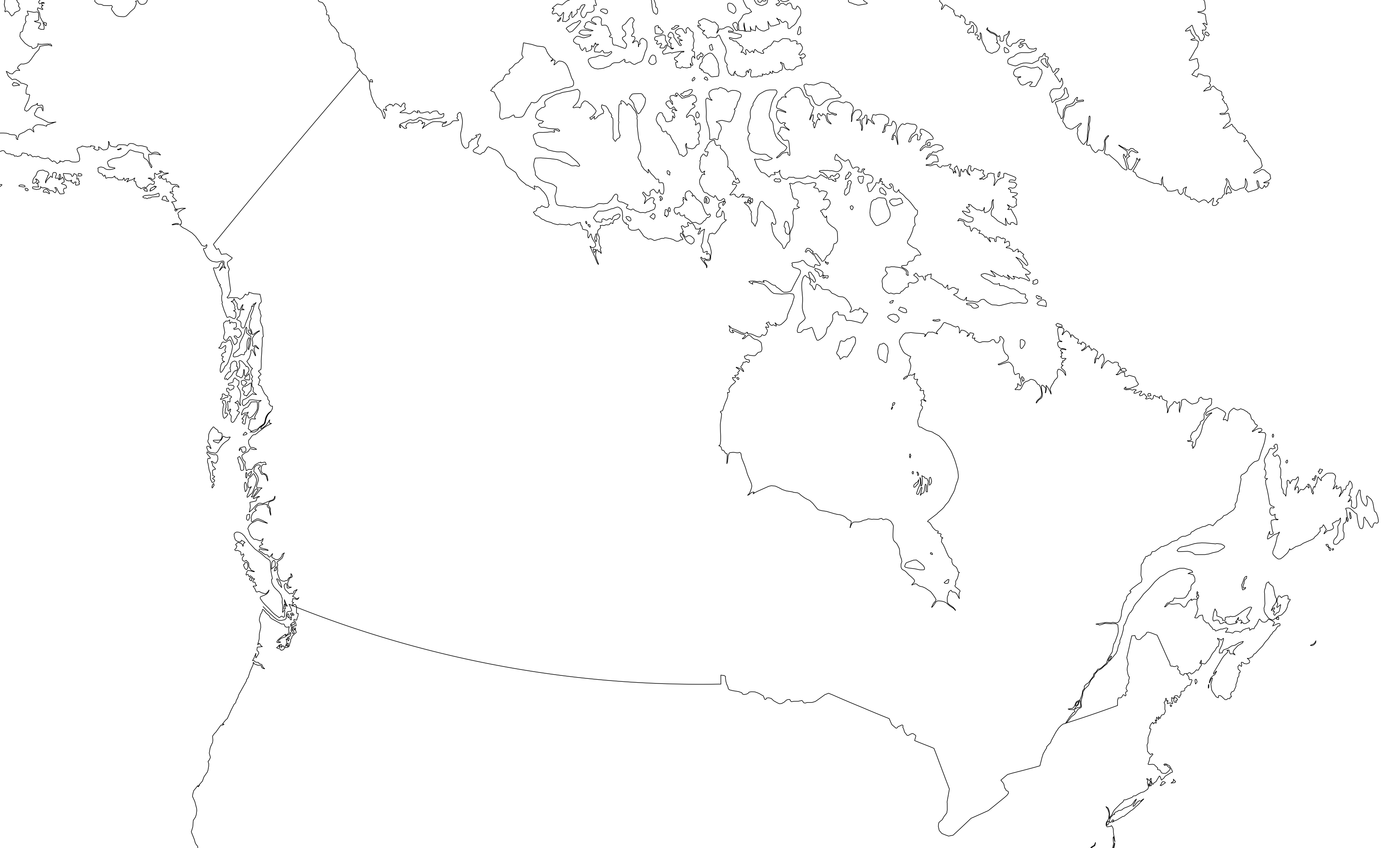
Additionally, you can display latitude / longitude gridlines on the generated sector
image if desired. To add gridlines, add the --gridlines or -g flag to your
command. This can be applied with the --overlay flag as well. For example:
geoips test sector australia --gridlines
geoips test sector australia --gridlines --overlay
By default, latitude / longitude labels are added to the sector if gridlines are
requested. To disable this, or change the location of where the labels are added, use
the --labels or -l flag. By default, labels are added to the bottom and left
sides of the sector.
You can add a --labels flag with no arguments to disable labels. Otherwise,
choose one or more of the following options [‘left’, ‘right’, ‘top’, ‘bottom’].
For example:
geoips test sector australia --gridlines --labels top right
geoips test sector australia --gridlines --labels
geoips test sector australia --gridlines --overlay --labels bottom
test script#
script executes an output-based test script which will return a numerical value
based on the output of the test.
A 0 is a success. Any non-zero number indicate a failure, and sometimes provide information on what kind of failure occurred.
Note
script only supports bash scripts ending in .sh
For example:
geoips test script <script_name> # (defaults to 'geoips' package)
script can execute integration tests in the ‘geoips’ package.
For example:
geoips test script --integration <script_name>
To run a test script, or run your integration tests, you must first place your integration / normal test scripts in one of these file locations:
Output Test scripts:
<package_name>/tests/scripts/<script_name>Integration Tests:
<package_name>/tests/integration_tests/<script_name>
You can run test scripts in plugin packages by specifying the
plugin package with -p or --package_name. For example:
geoips test script --package_name <package_name> <script_name>
geoips test script -p <package_name> <script_name>
test workflow#
This command runs the series of steps in the order specified by a workflow plugin. It
will only work if the referenced workflow plugin has a test section containing
parameters needed to execute that workflow. No additional arguments can be supplied for
this command.
For example:
geoips test workflow <workflow_name>
This command should be used only for testing workflow plugins in a simple, reproducible manner.
tree#
Only some GeoIPS CLI commands are exposed via geoips -h.
geoips tree lists all GeoIPS CLI commands in a tree-like fashion.
For example, running geoips tree returns:
geoips tree

geoips
    geoips config
        geoips config install
    geoips describe
        geoips describe algorithms
        geoips describe colormappers
        geoips describe coverage-checkers
        geoips describe feature-annotators
        geoips describe filename-formatters
        geoips describe gridline-annotators
        geoips describe interpolators
        geoips describe output-checkers
        geoips describe output-formatters
        geoips describe procflows
        geoips describe product-defaults
        geoips describe products
        geoips describe readers
        geoips describe sector-adjusters
        geoips describe sector-metadata-generators
        geoips describe sector-spec-generators
        geoips describe sectors
        geoips describe title-formatters
        geoips describe package
    geoips list
        geoips list algorithms
        geoips list colormappers
        geoips list coverage-checkers
        geoips list feature-annotators
        geoips list filename-formatters
        geoips list gridline-annotators
        geoips list interpolators
        geoips list output-checkers
        geoips list output-formatters
        geoips list procflows
        geoips list product-defaults
        geoips list products
        geoips list readers
        geoips list sector-adjusters
        geoips list sector-metadata-generators
        geoips list sector-spec-generators
        geoips list sectors
        geoips list title-formatters
        geoips list interfaces
        geoips list packages
        geoips list plugins
        geoips list scripts
        geoips list test-datasets
        geoips list unit-tests
    geoips run
        geoips run order_based
        geoips run single_source
        geoips run data_fusion
        geoips run config_based
    geoips test
        geoips test linting
        geoips test script
        geoips test sector
        geoips test workflow
    geoips tree
    geoips validate
geoips tree provides arguments to filter its output.
--color: highlights output by depth (Environment variable ‘NO_COLOR’ must be disabled)--max-depth: limits tree levels outputted. Defaults to two levels.--short-name: return only literal command names
validate#
validate (or val) runs interface defined validation-protocols on plugins.
Note
To list plugins available for validation, see geoips list plugins above.
A plugin’s full location path is needed to validate it.
For example:
geoips validate /full/path/to/geoips/geoips/plugins/yaml/products/abi.yaml
geoips validate /full/path/to/<pkg_name>/<pkg_name>/plugins/<plugin_type>/<interface>/plugin.<ext>